
What Is HEIC? Apple's Photo Format Explained (and How to Convert It)
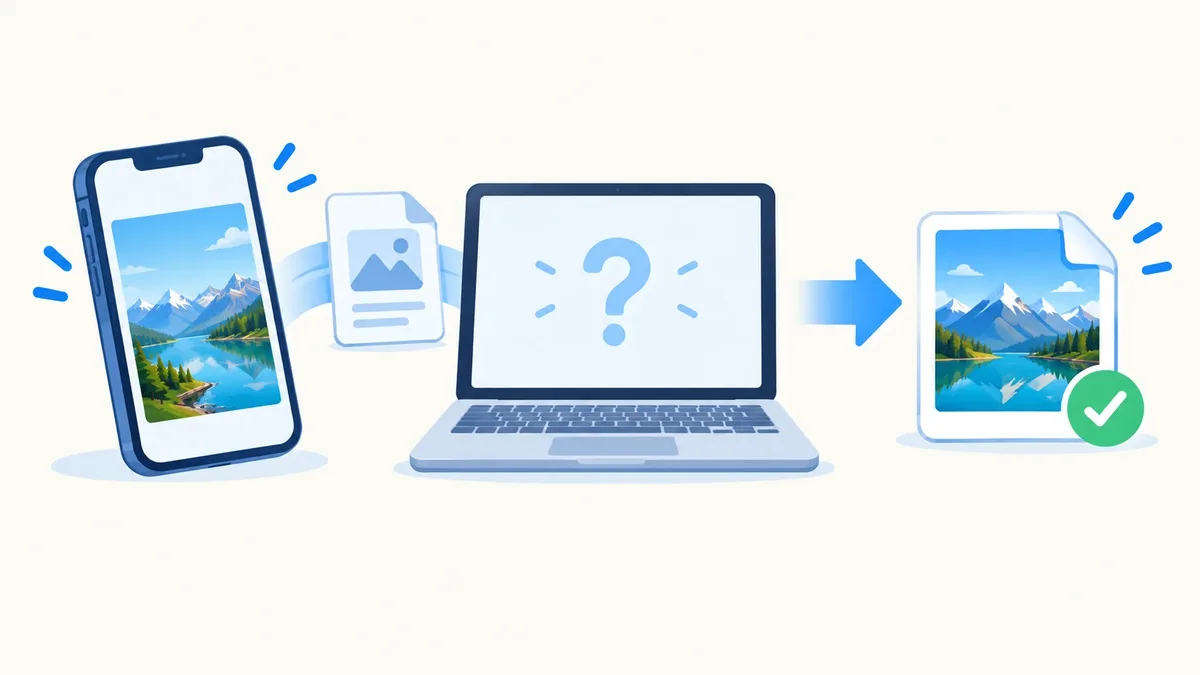
Key takeaways: HEIC is the photo format Apple has used by default since iOS 11 — it stores images inside a container called HEIF and compresses them with HEVC, so a HEIC file looks as good as a JPG but takes up roughly half the storage space. The catch is compatibility: many Windows apps, older Android phones, web forms, and print shops still can't open a HEIC file directly. The fix is either to convert HEIC to JPG when you need to share a photo, or to switch your iPhone's camera setting so it saves JPG in the first place.
What is a HEIC file, exactly?
HEIC stands for High Efficiency Image Container. It's Apple's implementation of a broader standard called HEIF (High Efficiency Image File Format), which was developed by the Moving Picture Experts Group — the same group behind MP4 video.
Two things make HEIC different from a JPG:
- The container. A HEIF/HEIC file isn't just one image. It can hold multiple images, thumbnails, depth data, and even short bursts of frames — which is how Apple built Live Photos and Portrait mode depth maps into a single file.
- The compression. Instead of the older JPEG codec, HEIC compresses image data using HEVC (High Efficiency Video Coding, also known as H.265) — the same codec used for 4K video. HEVC is significantly more efficient at squeezing out redundant data than the JPEG algorithm, which dates back to 1992.
The practical result: a HEIC photo typically takes up about half the file size of a JPG at the same visual quality. Shoot a few thousand photos a year on your iPhone, and that difference adds up to real storage saved, both on your device and in iCloud.
Apple made HEIC the default photo format starting with iOS 11 in 2017, on devices that support HEVC hardware decoding (iPhone 7 and later). Since then, every photo your iPhone camera takes — unless you've changed a setting — is saved as .heic.
Why does HEIC cause so many problems?
If HEIC is smaller and just as good-looking, why does it feel like such a headache? Because support for opening and displaying HEIC files is nowhere near as universal as JPG, which has been the web's default image format for three decades.
Common situations where a HEIC file trips people up:
- Windows. Older versions of Windows 10, and Windows without the HEIF/HEVC extensions installed, show HEIC photos as a blank thumbnail or refuse to open them at all in Photos or Paint.
- Older or non-Apple Android phones. Support for HEIC varies a lot across Android manufacturers and OS versions, so a photo AirDropped or messaged from an iPhone can arrive looking broken.
- Web forms and upload fields. Many websites — job applications, e-commerce listings, government portals — only accept JPG or PNG uploads and will reject a HEIC file outright.
- Print shops and photo labs. Most retail printing kiosks and professional print software still expect JPG, not HEIC.
- Older software and plugins. Photo editors, CMS platforms, and browser-based tools built before 2017 often have no idea what a
.heicfile is.
None of this means HEIC is a bad format — it is a remarkably efficient one. It just means you need a plan for the moment you need to share, upload, or print a photo outside the Apple ecosystem.
HEIC vs JPG: how they actually compare
| HEIC | JPG | |
|---|---|---|
| Compression | HEVC (H.265) | JPEG (1992 standard) |
| File size at same quality | Roughly half the size | Larger |
| Multiple images in one file | Yes (Live Photos, bursts) | No |
| Transparency support | No | No |
| Universal browser/OS support | Limited | Near-universal |
| Editing software support | Growing, still inconsistent | Supported everywhere |
| Default on | iPhone (iOS 11+) | Everywhere else |
The short version: HEIC wins on efficiency and features, JPG wins on compatibility. If you need to send, upload, or print a photo and you're not sure the recipient's software supports HEIC, convert it to JPG first.
How to convert HEIC to JPG
Converting a HEIC file to JPG is the easiest way to make an iPhone photo work anywhere. Here's how to do it with our HEIC to JPG converter:
- Go to the HEIC to JPG converter.
- Drag your HEIC photo (or a whole folder of them) into the upload area — batch conversion is supported, so you can drop dozens of files at once.
- The tool converts each file right in your browser. Your photos never get uploaded to a server, which means it's private and works even with sensitive images.
- Download your converted JPGs individually or as a single batch.
That's it — no account, no software to install, no watermark on the result. Because the conversion happens locally in your browser, it's also fast: there's no upload-then-download round trip to wait on.
If you need to preserve transparency or you're converting a screenshot rather than a photo, use the HEIC to PNG converter instead — more on when PNG makes sense below.
How to stop your iPhone from shooting HEIC
If you're tired of converting files after the fact, you can tell your iPhone to save JPG photos from the start:
- Open Settings.
- Tap Camera.
- Tap Formats.
- Under "Camera Capture," choose Most Compatible instead of "High Efficiency."
With "Most Compatible" selected, your iPhone camera saves new photos as JPG and new videos as H.264 instead of HEVC — no HEIC files at all, going forward. Note this only affects new photos; anything already saved as HEIC stays HEIC unless you convert it.
There's also a setting worth knowing about for the opposite direction — moving photos off your iPhone. Under Settings › Photos › Transfer to Mac or PC, you'll see two options:
- Automatic converts HEIC photos to JPG (and HEVC video to H.264) automatically when you transfer them to a computer that doesn't support HEIC.
- Keep Originals transfers the files as HEIC, no matter what.
If you regularly plug your iPhone into a Windows PC or an older Mac, "Automatic" saves you from having to convert files manually every time.
When should you keep HEIC?
HEIC isn't something to avoid entirely — it has real advantages when you stay inside Apple's ecosystem:
- Storage. If your iCloud storage or device storage is tight, HEIC's smaller file size makes a real difference.
- Live Photos. Converting a Live Photo to JPG throws away the motion and sound data — only HEIC keeps that intact.
- Editing in Apple apps. Photos, Preview, and other Apple software handle HEIC natively with no quality loss.
The rule of thumb: keep HEIC for photos that stay on your Apple devices or in iCloud. Convert to JPG the moment a photo needs to leave that ecosystem — an email attachment, a website upload, a shared album with Android users, or a print order.
What about screenshots and images with transparency?
JPG isn't always the right target format. JPG compression is lossy and doesn't support transparency, so if you're converting a HEIC screenshot, a graphic with a transparent background, or anything with sharp text and edges, PNG usually looks cleaner. Use the HEIC to PNG converter for those cases — it keeps transparency intact and avoids the slight fuzziness JPG compression can introduce around hard edges.
If your converted photos are still too large for an email attachment or a website's upload limit, run them through the image compressor afterward to shrink the file size further without a major quality hit. And if you're putting photos into a document or need to send several as one file, the image to PDF tool turns a batch of JPGs into a single, easy-to-share PDF.
Frequently asked questions
Can Windows open HEIC files?
Recent versions of Windows 11 can open HEIC files if the HEIF and HEVC extensions are installed, but many Windows 10 systems and older setups cannot open them without extra software. The most reliable fix is to convert the HEIC file to JPG before opening it on Windows.
Does converting HEIC to JPG reduce quality?
There's a small quality trade-off because JPG uses different, generally less efficient compression, but at high JPG quality settings the difference is not noticeable to the eye in everyday photos. The bigger change is file size — the JPG version will usually be larger than the original HEIC.
Why won't a website let me upload my iPhone photo?
Many websites only accept specific formats like JPG or PNG and reject HEIC uploads outright, since HEIC support in web browsers and server-side software is still inconsistent. Converting the photo to JPG first almost always solves the upload error.
Is HEIC the same as HEIF?
Not quite — HEIF is the overall file format standard, and HEIC is Apple's specific implementation of it using HEVC compression, which is why the two names get used interchangeably. In everyday use, when people say "HEIC," they mean the .heic photo files an iPhone produces.
How do I convert a HEIC photo on my iPhone without a computer?
You can take a screenshot of the photo as a workaround, but that reduces quality and resolution. The better option is to upload the HEIC file to a browser-based converter like our HEIC to JPG tool directly from Safari or Chrome on your iPhone — it works on mobile just as it does on desktop.
Convert your HEIC photos now
Whether you have one photo or an entire camera roll, converting HEIC to a format everyone can open takes seconds. Try the HEIC to JPG converter for maximum compatibility, or the HEIC to PNG converter if you need transparency. Both run entirely in your browser — free, private, and with no limit on how many files you convert.