
How to Make a QR Code (Free, No App Needed)
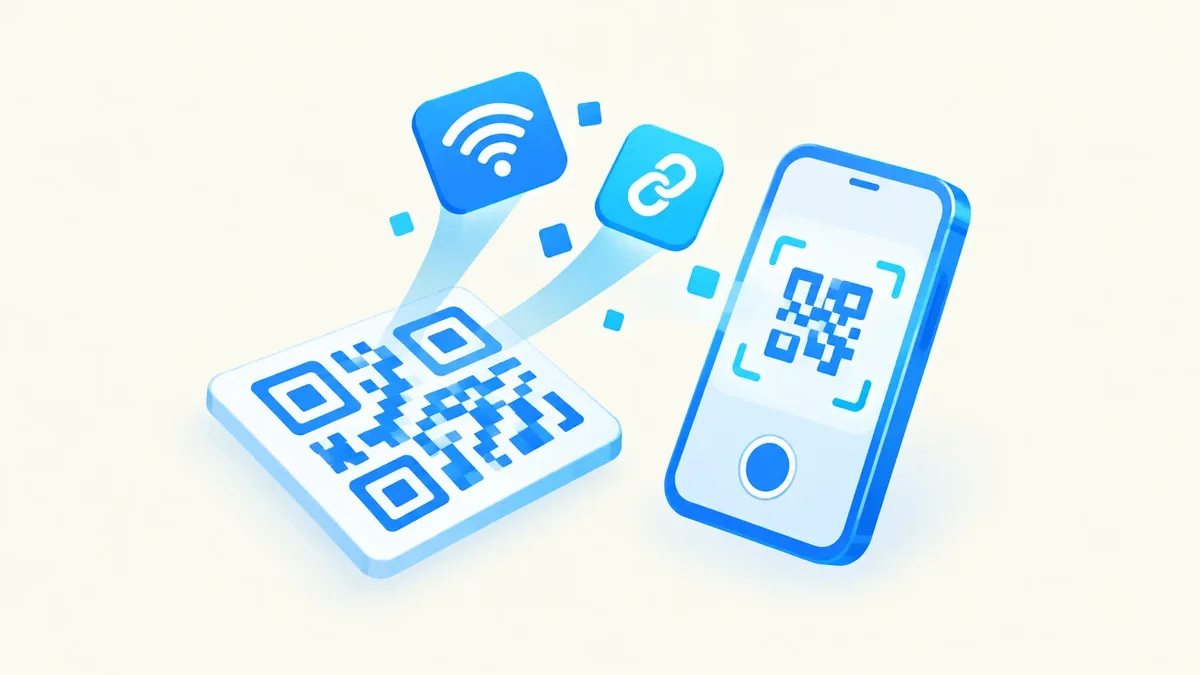
Key takeaways: A QR code is just a pattern that stores text — usually a URL, but it can also hold Wi-Fi details, a contact card, or a phone number. Pick static (never expires, can't be edited or tracked) unless you specifically need to change the destination later or track scans, in which case you need a dynamic code from a service that keeps working. Generate one, choose a high error correction level if you're adding a logo, and always test the printed version on a real phone before you commit to a big print run.
A QR code (short for "quick response" code) is a two-dimensional barcode. Where a traditional barcode stores a short number in a single line, a QR code stores much more data in a grid of black and white squares — enough for a full web address, a Wi-Fi password, or a set of contact details, not just a product ID.
What a QR code actually encodes
Every QR code holds plain text. What that text does depends on its format:
- URL — opens a webpage. This is the type you'll use most often.
- Wi-Fi — encodes the network name, password, and security type, so scanning it connects the phone automatically.
- vCard — a contact card format that adds a name, phone number, and email directly to the scanner's contacts app.
- SMS — pre-fills a text message to a specific number.
- Email — opens a new email with the recipient, and sometimes subject line, already filled in.
- Phone — starts a call to a specific number when scanned.
The phone's camera doesn't "understand" any of this — it just reads the text out of the pattern and hands it to the operating system, which decides what to do based on the format.
Static vs dynamic QR codes
This is the single most important decision you'll make, and it's the one most guides skip.
A static QR code encodes your final destination directly into the pattern. Once it's generated, the data inside it never changes, and there's no third party involved in scanning it. It will work for as long as QR codes exist as a standard — which is to say, indefinitely.
A dynamic QR code encodes a short link to a redirect service instead of your real destination. When someone scans it, their phone is sent to that service first, which then forwards them to the URL you configured. This is how dynamic codes let you change the destination after printing, and how they can log scan counts.
The tradeoff is real, and it has bitten real businesses: dynamic codes depend on that redirect service staying online and staying free. If the service shuts down or switches from a free tier to a paid plan, every code you've already printed can stop working or get held hostage behind a paywall. Restaurants have had to reprint entire menus because a "free" QR provider started charging after the codes were already on every table. A static code has no such dependency — it works forever because it doesn't rely on anyone else's server.
| Static QR code | Dynamic QR code | |
|---|---|---|
| Expires? | Never | Can, if the redirect service stops working |
| Editable after printing? | No | Yes |
| Scan tracking? | No, not natively | Yes |
| Depends on a third party? | No | Yes |
| Best for | Print materials, packaging, anything permanent | Campaigns you'll actively update |
Unless you specifically need to track scans or change the link later, use a static code — it's simpler, free forever, and there's nothing to maintain.
How to make a QR code, step by step
- Open the QR code generator.
- Choose the code type — URL, Wi-Fi, vCard, SMS, email, or phone.
- Enter the content: the link, or the Wi-Fi name and password, or the contact details.
- Set the error correction level (use H if you plan to add a logo).
- Generate the code and preview it at your intended print or display size.
- Download it as PNG or SVG depending on the use case.
- Test it — scan the actual output, not a screenshot, with two or three different phones.
Because this runs entirely in your browser, none of the data you enter — including a Wi-Fi password — gets sent to a server.
Error correction levels: L, M, Q, H
Every QR code includes built-in redundancy, so it can still be read even if part of it is damaged, dirty, or partially covered. That redundancy has a cost: the higher the level, the denser the pattern, since more of it is spent on backup data instead of your actual content.
| Level | Recoverable damage | When to use it |
|---|---|---|
| L (Low) | ~7% | Clean digital display, simple short links |
| M (Medium) | ~15% | General-purpose default |
| Q (Quartile) | ~25% | Outdoor signage, codes that might get scuffed |
| H (High) | ~30% | Any code with a logo overlaid on it |
If you're placing a logo in the middle of your QR code, always use level H — the extra redundancy is what lets the scanner still read the pattern correctly with a chunk of it covered.
Printing rules that actually matter
A QR code that looks fine on screen can fail once printed small or placed somewhere awkward. A few rules cover most real-world failures:
- Keep the quiet zone. Leave a blank margin around the code equal to at least 4 modules (the small squares that make up the pattern) on every side. Scanners use this empty border to find the edges — crop it too tight and the scan fails entirely.
- Respect the minimum size. Print QR codes no smaller than about 2×2 cm (roughly ¾ inch) for close-range scanning, like a receipt or a business card.
- Scale up for distance. Add about 1 cm of code size for every 10 cm of expected scanning distance. A poster scanned from a few meters away needs a noticeably larger code than a flyer held in the hand.
- Keep contrast high. Dark modules on a light background is the standard scanners are tuned for.
- Never invert it. Light-colored modules on a dark background can look sharp in a mockup but dramatically reduces scan reliability. Avoid it unless thoroughly tested.
- Test on real phones. Before a print run, scan the printed proof — not a digital preview — with two or three different phone models. A code that scans instantly on one phone can be sluggish on another.
PNG vs SVG
When you download your QR code, you'll usually get a choice between PNG and SVG.
PNG is a fixed-resolution image — the simpler choice for digital use like websites, email signatures, and social posts, where you know the exact size you need.
SVG is a vector format, built from mathematical shapes rather than pixels. It scales to any size, from a business card to a building-sized banner, without losing sharpness. If you're sending your code to a print shop, especially for anything larger than a flyer, SVG is the safer format. If you need a PNG at a specific size from an SVG source, an SVG to PNG converter makes the conversion in seconds, and a resize image tool handles the PNG version once you've settled on your final size.
Getting analytics without a dynamic code
Scan tracking is the main reason people reach for dynamic codes, but there's a simpler way to get most of the same information: point a static QR code at a URL you already control, and track visits there instead of relying on a third-party redirect.
For example, if you're printing a code on a flyer, encode a link like yoursite.com/flyer instead of your homepage, then check your own website analytics for that page. You get the scan data you actually care about, and the code itself never expires or depends on anyone else's service.
Frequently asked questions
Do QR codes expire?
A static QR code never expires — the data is baked directly into the pattern, so it works as long as QR codes are a supported standard. A dynamic code can effectively expire if the redirect service behind it shuts down, changes its pricing, or removes your account.
What's the minimum size for a QR code?
For close-range scanning, such as on a business card or receipt, aim for at least 2×2 cm (about ¾ inch). For codes viewed from farther away, scale up roughly 1 cm for every 10 cm of expected scanning distance, and always test the actual printed size before a full print run.
Can I put a logo in my QR code?
Yes, as long as you generate the code with a high error correction level (H), which builds in enough redundancy for the scanner to still read the pattern with part of it covered. Keep the logo modest in size, and test thoroughly before printing.
Should I use a static or dynamic QR code?
Use a static code unless you specifically need to change the destination after printing or need built-in scan tracking. Static codes never expire and don't depend on any third party, while dynamic codes route through a redirect service that can go down, change pricing, or disappear.
Why won't my QR code scan?
The most common causes are a missing quiet zone, low contrast between the code and its background, a code printed too small for the scanning distance, or a logo overlay combined with a low error correction level. Check each of these, and confirm with a real phone scan before finalizing a design.
Ready to make your own? Try the QR code generator to build a static or Wi-Fi code in seconds, use SVG to PNG if you need a specific pixel size from a vector export, or resize image to fit your code into an existing design template. Everything runs in your browser — no uploads, no sign-up, no watermark.