
How to Convert PDF to JPG (Free, on Any Device)
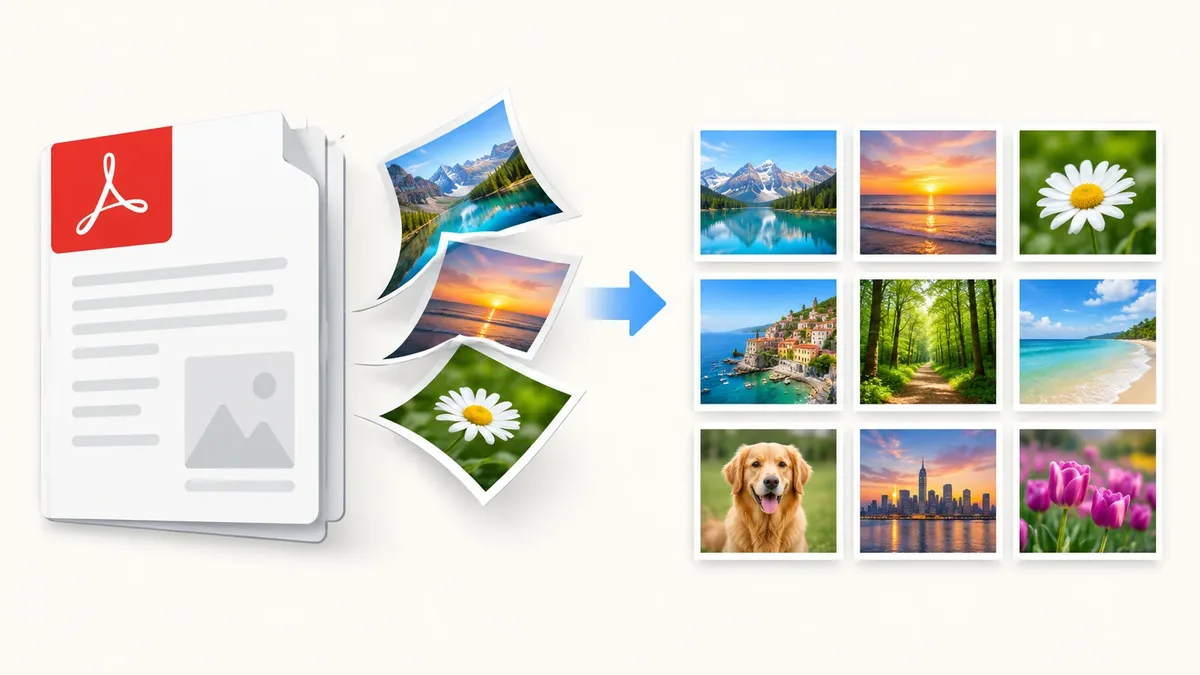
Key takeaways: The fastest way to convert a PDF to JPG is a browser-based tool — drag in your file, pick a resolution, and download the images in seconds, no software or sign-up needed. For most uses (sharing, slides, social posts) 150–300 DPI gives you a sharp image without a huge file size. Multi-page PDFs convert to one JPG per page, usually packaged as a ZIP.
You've got a PDF and you need it as an image. Maybe you're posting a page to Instagram, dropping a diagram into a slide deck, or just need a thumbnail your phone's gallery can actually show. PDFs are great for documents, but most apps, social platforms, and photo editors expect a JPG. Here's how to make that switch cleanly, on whatever device you're holding.
Why you'd need to convert a PDF to JPG
A few situations come up constantly:
- Sharing on social media or WhatsApp. Instagram, Facebook, and most messaging apps don't preview PDFs well — they show a generic file icon instead of the content. A JPG shows up as an actual image people can see at a glance.
- Embedding in slides or documents. PowerPoint, Google Slides, and Canva handle images far more predictably than embedded PDFs, which can render inconsistently or refuse to scale.
- Editing in a photo tool. You can't crop, retouch, or add text to a PDF page in most image editors. Convert it to JPG first and it behaves like any other photo.
- Faster previews. JPGs load instantly in a browser tab or file manager thumbnail; a PDF often needs a dedicated viewer to open.
Quality and DPI, explained simply
DPI (dots per inch) controls how much detail is packed into the resulting image. Since a PDF page has no fixed pixel count — it's built from vector text and layout instructions — the DPI setting is what decides how many pixels the JPG ends up with.
| DPI | Best for | Typical result |
|---|---|---|
| 72 DPI | Web previews, quick sharing, email attachments | Small file, soft on text and fine lines |
| 150 DPI | Slides, social posts, general documents | Good balance of clarity and file size |
| 300 DPI | Printing, zooming into detail, scanned documents with small text | Sharp and print-ready, larger file size |
A rule of thumb: if the JPG will only ever be viewed on a screen, 150 DPI is plenty. If it might get printed, or the PDF has small text you need to read clearly, go with 300 DPI. Since JPG uses lossy compression (it discards some image data to shrink file size), higher DPI also helps offset any softness introduced during compression.
The fastest method: convert PDF to JPG in your browser
This is the method most people should use — no installs, no watermark, and it works the same on Windows, Mac, Chromebook, or a phone browser. Our PDF to JPG tool runs entirely in your browser, meaning your file is processed on your device and never uploaded to a server.
Step by step:
- Open /pdf-tools/pdf-to-jpg/ in any browser.
- Drag your PDF into the upload area, or click to browse and select it.
- Choose your output quality (DPI) — 150 for screens, 300 if you'll print it.
- Click convert. Each page is rendered as a separate JPG.
- Download the image directly, or grab all pages at once as a ZIP if it's a multi-page file.
That's it — no email sign-up, no software to install, and no watermark stamped across your image. Because everything happens locally in the browser, it's also faster than uploading a file, waiting in a queue, and downloading a result from someone else's server.
Platform methods, in brief
If you'd rather not use a web tool, here's what your device already offers — along with where each option falls short.
Windows: screenshot or Print to image
Windows doesn't have a built-in "export PDF as JPG" button. Your two workarounds:
- Snipping Tool / screenshot: Open the PDF, use Win+Shift+S to capture the page, then save the screenshot as a JPG. This works but caps out at your screen's resolution — fine for a quick share, not great for anything you'll zoom into or print.
- Print to a virtual printer: Some third-party "Microsoft Print to PDF" alternatives can output an image, but Windows' native print dialog only outputs PDF, not JPG — so this route usually needs extra software.
Both methods are manual, one page at a time, and don't scale well for a 20-page document.
Mac: Preview's export function
Preview, the default PDF viewer on macOS, actually handles this well for single pages:
- Open the PDF in Preview.
- Go to File > Export.
- Choose JPEG as the format and set a quality slider.
- Save.
The catch: Preview exports whichever page is currently in view, so a multi-page PDF means repeating this for every page. Fine for a one-off, tedious for anything longer.
iPhone and Android: share sheet workaround
On mobile, there's no native "convert to JPG" action either. The common workaround is opening the PDF, taking a screenshot, and cropping it — which, again, limits you to screen resolution and one page per screenshot. Some file and notes apps offer an "export as image" option buried in their share sheet, but it varies by app and iOS/Android version. A browser-based tool is more consistent here since it works the same regardless of what apps you have installed.
Multi-page PDFs: one JPG per page
A PDF with multiple pages doesn't collapse into a single JPG — each page becomes its own separate image, since a JPG can only hold one "page" of content. For a 10-page PDF, you'll end up with 10 JPG files. A good converter bundles these into a single ZIP download so you're not saving files one by one, which is worth checking for before you commit to a tool for longer documents.
JPG vs. PNG: which output should you pick
JPG is the right default for scanned documents, photos, or anything with continuous color and shading — it compresses well and keeps file sizes small. PNG is the better choice when the PDF page has sharp text, line art, or transparent backgrounds, since PNG uses lossless compression and won't introduce the slight blurring JPG can create around hard edges.
If you convert to JPG and later decide you need PNG instead (or vice versa), you don't need to redo the whole PDF conversion — just run the image through our JPG to PNG converter.
Privacy: local processing vs. upload sites
Plenty of PDF-to-JPG sites work by uploading your file to a remote server, converting it there, and sending the result back. That's an extra copy of your document sitting on someone else's infrastructure, even if briefly — not ideal for anything with personal, financial, or client information on it.
Browser-based tools that process files locally (using your device's own processing power, not a server) skip that step entirely. Your PDF never leaves your computer or phone, which matters more than it might seem for anything you wouldn't want floating around outside your control.
What to do next with your images
Once you've got your JPGs, a few tools come in handy depending on where they're headed:
- Need to shrink the file size before emailing or uploading? Try compress image.
- Want to turn a set of JPGs back into a single PDF later? Use image to PDF.
- Need PNG instead, for transparency or crisper text? Convert with JPG to PNG.
Frequently asked questions
Can I convert a PDF to JPG for free?
Yes. Browser-based tools like our PDF to JPG converter are free to use, don't require an account, and don't add a watermark to your output.
Does converting a PDF to JPG reduce quality?
It can, since JPG uses lossy compression. Choosing a higher DPI (300 instead of 72) before converting minimizes the quality loss, especially for text and fine detail.
What happens to a multi-page PDF when I convert it to JPG?
Each page becomes its own separate JPG file, since a single image file can't hold multiple pages. Most converters let you download all the resulting images together as a ZIP.
Is it safe to convert a PDF with personal information online?
It's safer to use a tool that processes files locally in your browser rather than one that uploads your document to a server. Local processing means your file never leaves your device.
Should I choose JPG or PNG when converting a PDF page?
Choose JPG for scanned pages, photos, or documents with lots of color and shading. Choose PNG if the page has sharp text, line art, or needs a transparent background — you can always convert between the two afterward with JPG to PNG.
Ready to convert your PDF?
Head to /pdf-tools/pdf-to-jpg/ to convert your file now — free, private, and no sign-up required. Need to go the other direction? Turn images back into a PDF with image to PDF.