
How to Reduce Image Size Without Losing Quality
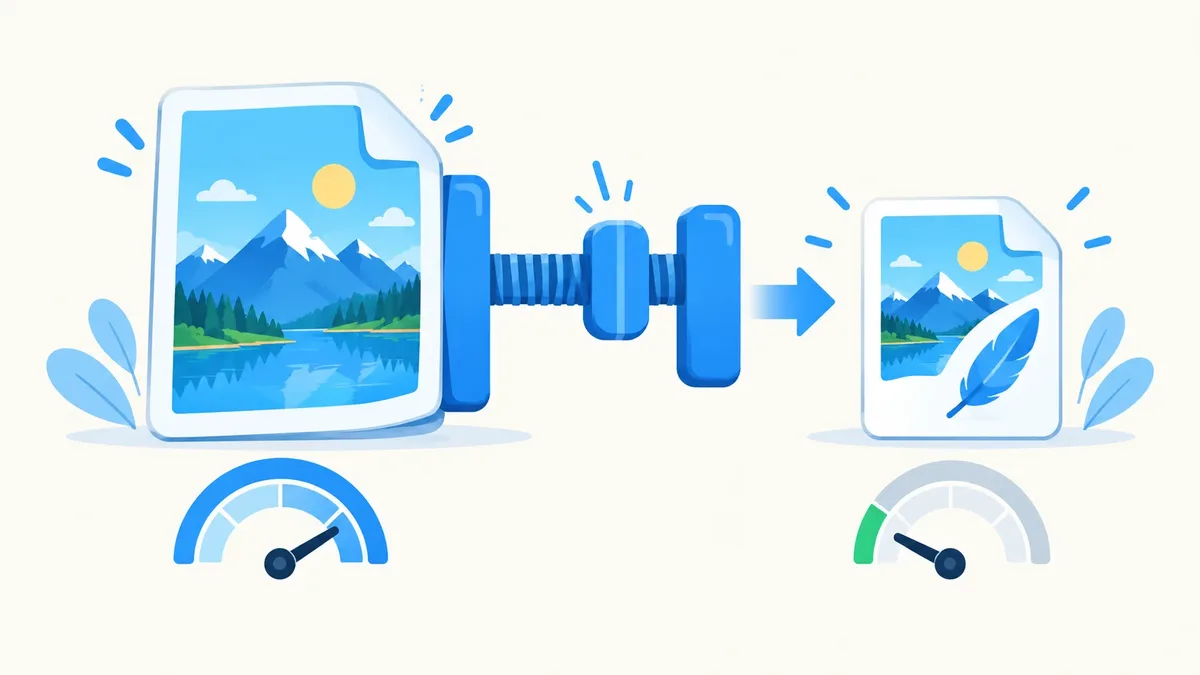
Key takeaways: Image file size comes down to two things — the pixel dimensions (how many megapixels) and the compression level (how much detail is thrown away to save space). To hit a target like 100 KB, resize first if the photo is huge, then compress with a quality setting around 80–85. Use JPG for photos, PNG for graphics with transparency, and WebP when the platform supports it — all three shrink further with a dedicated compressor.
Most people trying to reduce photo size have one of two problems: a form or application won't accept the file because it's too big, or a page loads slowly because the images are bloated. Both problems have the same fix, just tuned differently. Here's how to think about it, and how to actually do it.
The two levers: dimensions vs. compression
Every image file has two properties that drive its size, and it helps to treat them separately.
Dimensions are the width and height in pixels. A photo straight off a modern phone camera is often 4000×3000 pixels or larger — that's 12 megapixels of data, most of which is invisible detail once the image is shown at a smaller size on a screen or form field.
Compression is how efficiently the file stores that pixel data. Formats like JPG and WebP use "lossy" compression — they discard information the human eye is less likely to notice, and you control how aggressively with a quality slider. Lower quality means smaller file, more compression artifacts.
Here's the distinction that trips people up: resizing changes how big the picture looks, compression changes how efficiently it's stored. You can compress a huge image and it's still huge because there's simply more pixel data to encode. You can resize a small image down and it won't shrink much further no matter how hard you compress it, because there wasn't much data there to begin with. Getting a truly small file usually means doing both.
What actually makes a file big
Three things determine file size, and knowing them tells you where to cut.
- Megapixels. More pixels means more data to store, full stop. A 4000×3000 photo has roughly 4x the pixel data of a 2000×1500 version of the same shot.
- Format. JPG uses lossy compression built for photos. PNG uses lossless compression, which keeps every pixel exact but produces much larger files for photographic content — it's built for graphics, logos, and screenshots with flat colors and transparency. WebP generally beats both at the same visual quality.
- Metadata. Camera photos carry EXIF data — camera model, GPS location, shooting settings, sometimes a thumbnail preview — bundled inside the file. It's usually a small amount, a few KB to a couple hundred KB, but it adds up and most tools strip it out during compression anyway.
Target sizes people actually need
Most "reduce image size" searches are really "I need this file under a specific limit." Here's what those common targets are for:
| Target size | Typical use case |
|---|---|
| 50 KB | Passport/visa photo uploads, some government portals |
| 100 KB | Job application forms, university admissions, ID card uploads |
| 200 KB | Resume/CV attachments, general web forms |
| 1 MB | Email attachments, most CMS and blog upload limits |
If you need to compress image to 100kb specifically, resize the image down first — a photo at 1000–1200 pixels on the long edge compresses to that range far more reliably than trying to crush a full-resolution original with an extreme quality setting.
Step-by-step: reduce image size in KB
- Check the current size and dimensions. If a photo is several megapixels and several MB, plan to resize before compressing.
- Resize if needed. Open our resize image tool and scale the image down to the dimensions you actually need — for form uploads, 800–1200 pixels on the long edge is usually plenty.
- Compress with a target. Open our compress image tool and use the target-KB option — enter the exact file size you need (say, 100 KB) and it adjusts the quality automatically to land at or under that number, instead of you guessing quality percentages by trial and error.
- Check the result. Zoom in on faces, text, or fine detail before you submit or publish — compression artifacts show up first in high-contrast edges and skin tones.
- Convert format if needed. If you're uploading a PNG screenshot that should be a JPG (or vice versa), convert it first with PNG to JPG so the compressor has the right format to work with.
All of this runs in your browser — files aren't uploaded to a server, so it's fast and your photos stay private.
Choosing the right format
Picking the right format before you compress makes a bigger difference than most people expect.
- JPG is the default for photographs — portraits, landscapes, product shots. Its lossy compression is specifically tuned for the kind of smooth color gradients photos have.
- PNG is for graphics: logos, screenshots, icons, anything with flat colors, sharp edges, or transparency. PNG supports an alpha channel for transparency, which JPG does not. Using PNG for a photo produces an unnecessarily large file; using JPG for a logo introduces blur and artifacts around sharp edges.
- WebP is a modern format built for the web that typically produces smaller files than JPG or PNG at equivalent visual quality, with support for both lossy and lossless compression plus transparency. It's a strong default for website images where browser support isn't a concern.
If you're not sure which way to convert, JPG to WebP is the most common move for shrinking website photos, and PNG to JPG is the most common move for shrinking photos that were accidentally saved or screenshotted as PNG.
Quality-setting guide: what number to use
Quality settings run on a 0–100 scale in most compressors, and the relationship between quality and file size isn't linear — the biggest savings happen dropping from 100 down to around 85, with diminishing returns after that.
- 95–100: Visually lossless, but large. Reserve this for master copies or print.
- 80–85: The sweet spot for almost everything — web images, email attachments, general sharing. The difference from 100 is essentially invisible at normal viewing sizes, but the file is often 3–5x smaller.
- 60–75: Noticeably smaller files, acceptable for thumbnails or when hitting a strict size cap matters more than fine detail.
- Below 50: Visible artifacts — blockiness around edges, smudged detail — usually only worth it when you have no other choice.
If your compressor offers a target-KB mode instead of a quality slider, use that when you have a hard limit to hit; use the quality slider when you're aiming for "as small as possible while still looking good."
Bulk compression
If you're processing more than a few images — product photos for a store, a folder of screenshots for a report, photos for a gallery — compressing one at a time wastes time. A batch-capable compressor lets you drop in a whole folder and applies the same quality or target-size setting to every file at once, which keeps sizes consistent across the set instead of eyeballing each one individually.
Common mistakes that hurt quality
Re-saving a JPG over and over. Every time you open a JPG, edit it, and save it again, it goes through another round of lossy compression on top of the last one. Do this a few times and you'll see visible quality loss even without ever touching the quality slider yourself. Keep an original copy and compress from that each time instead of compressing an already-compressed file.
Upscaling a small image to make it "bigger." Stretching a low-resolution photo to larger dimensions doesn't add real detail — it just makes existing pixels bigger and blurrier, and the file size grows without any gain in sharpness. If you need a larger image, you need a higher-resolution source, not a resize.
Skipping resize and only compressing. Applying heavy compression to a full-resolution image to hit a size target often produces worse-looking results than resizing to reasonable dimensions first, then applying moderate compression. Resize vs compress isn't an either/or — for most size targets, you want both.
Ignoring format. Compressing a PNG photo instead of converting it to JPG first leaves a lot of easy savings on the table.
Frequently asked questions
What's the difference between resizing and compressing an image?
Resizing changes the pixel dimensions of an image — making it physically smaller or larger. Compressing keeps the same dimensions but changes how efficiently the pixel data is stored, trading some image detail for a smaller file. For the smallest possible file at an acceptable quality, you typically want to resize to the dimensions you actually need first, then compress.
How do I compress an image to exactly 100 KB?
Use a compressor with a target-size option: enter 100 KB and it adjusts the quality level automatically to land at or under that size. If the source image is very large in dimensions, resize it down to around 1000–1200 pixels on the long edge first — this makes it much easier for the compressor to hit an exact small target without excessive quality loss.
Does converting a PNG to JPG reduce file size?
Yes, in most cases. PNG uses lossless compression, which keeps every pixel exact but produces larger files for photographic content. JPG's lossy compression is built for photos and typically produces a significantly smaller file at a visually similar quality. Convert with our PNG to JPG tool — but keep images with transparency in PNG, since JPG doesn't support it.
Will compressing an image reduce its quality?
Some quality loss is unavoidable with lossy compression, but at moderate settings (quality 80–85) the difference is essentially invisible at normal viewing sizes. Quality loss becomes noticeable at lower settings or after repeated re-compression of the same file, so always compress from an original rather than a file you've already compressed before.
What image format is smallest for the same quality?
WebP generally produces the smallest files among common formats at equivalent visual quality, followed by JPG for photos. PNG is the largest for photographic content since it's lossless, though it's the right choice for graphics and anything needing transparency. Convert with JPG to WebP if your use case supports it.
Reduce your images now
Ready to shrink a photo down to size? Use our free image compressor with the target-KB option to hit an exact file size, or the resize image tool to change dimensions first. Both run entirely in your browser — no upload, no sign-up, no watermark.