
JPG vs PNG: Which Image Format Should You Use?
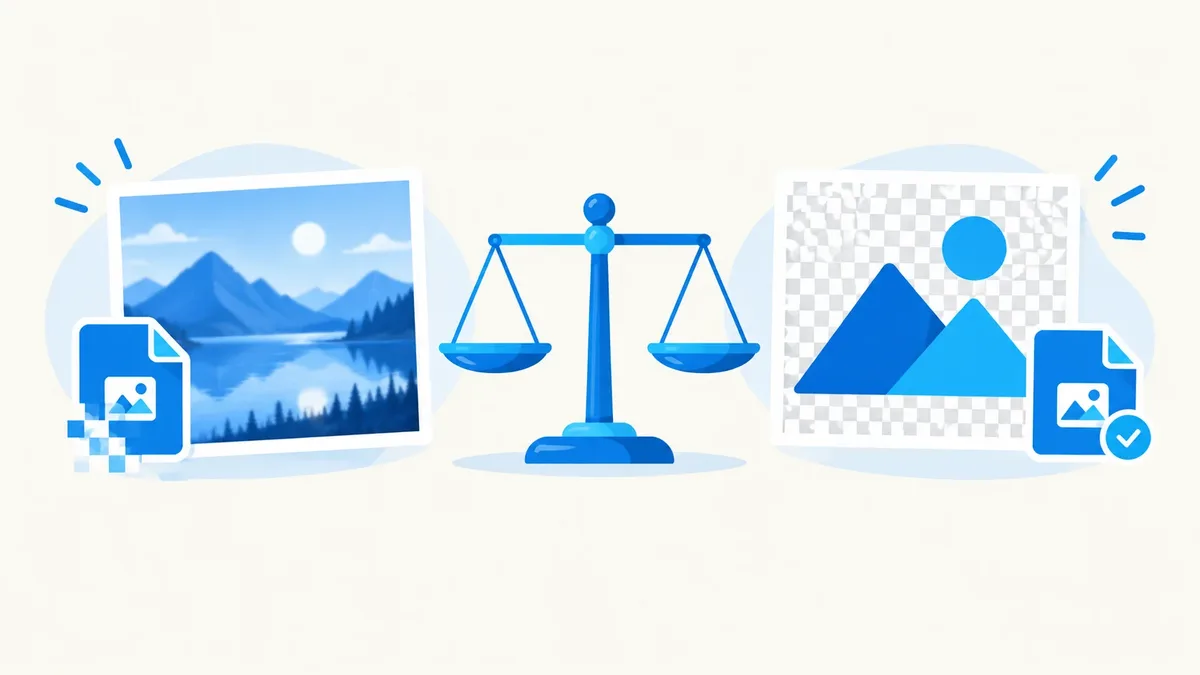
Key takeaways: JPG uses lossy compression that shrinks photos into small files by discarding some detail, while PNG uses lossless compression that keeps every pixel exact and supports transparency. Use JPG for photos and anything with lots of color and detail; use PNG for logos, screenshots, text, and any graphic that needs a transparent background. If you're not sure, ask yourself one question: does this image need a transparent background? If yes, PNG. If no, JPG will almost always give you a smaller file at quality that looks fine.
Both formats have been around since the 1990s and remain the default choice for most images on the web. The difference comes down to how each one compresses data and what kind of image content it was built to handle. Once you understand that, picking the right one takes about two seconds.
Compression: lossy vs lossless
This is the core difference between the two formats.
JPG (JPEG) is lossy. When you save a JPG, the compression algorithm throws away some image data permanently to make the file smaller. It does this in a smart way — it targets detail the human eye is less sensitive to, like tiny color shifts in busy areas — so a well-compressed JPG can look nearly identical to the original while taking up a fraction of the space. But that data is gone. Every time you re-save a JPG, you lose a little more quality, a problem known as generation loss.
PNG is lossless. It compresses the file without discarding any pixel data, similar to how a ZIP file compresses a document. Open a PNG, edit it, save it again, and it looks exactly the same — no quality degradation, no matter how many times you resave it. The tradeoff is that PNG files are usually larger than JPGs, especially for photographic content.
If you're converting between the two, it helps to see it in both directions: a PNG to JPG converter shrinks a lossless file down for the web, while a JPG to PNG converter is useful when you need to edit a photo without compounding compression loss, or when you need to add a transparent layer to it.
Transparency
PNG supports an alpha channel, which means individual pixels can be fully transparent, fully opaque, or anywhere in between. That's what lets a logo sit cleanly on any colored background, or a product photo float on a white webpage without a visible box around it.
JPG has no transparency support at all. Every pixel is fully opaque, so if you need to remove a background, JPG simply can't do it — you'll get a white or black fill instead of a clear one.
This single feature is usually the deciding factor. If the image needs to blend into different backgrounds — a logo, an icon, a watermark, a sticker — it has to be PNG.
File size
For the same image, JPG files are almost always smaller than PNG files, sometimes by a factor of five or more. That's because JPG's lossy compression is specifically tuned for photographic content: gradients, natural color variation, and fine detail compress very efficiently when some precision is sacrificed.
PNG's lossless compression works differently — it looks for exact repeating patterns in the pixel data. That makes it excellent for images with flat colors, sharp edges, and repetition, like a logo or a screenshot with lots of white space. But feed it a detailed photo, and the file balloons, because there isn't much exact repetition to compress.
If your PNG files are getting too large for your website or upload limits, a general-purpose image compressor can shrink them further without changing the format, which is worth trying before you convert to JPG and lose the transparency.
Colour depth
JPG stores images at 24-bit color, which works out to about 16.7 million possible colors per pixel — more than enough for how the human eye perceives natural photos.
PNG is more flexible. Standard PNG (PNG-24) also supports 24-bit color plus an 8-bit alpha channel for transparency, giving you 16.7 million colors and 256 levels of transparency. There's also PNG-8, a lighter variant limited to 256 colors, similar in spirit to GIF, which is capped at the same 256-color limit and mainly used for simple animations and icons.
Best use cases: photos vs graphics
Here's the simplest way to decide, based on what's actually in the image:
Use JPG for: - Photographs from a camera or phone - Product photos with realistic lighting and color gradients - Any image with lots of visual complexity where small file size matters more than pixel-perfect accuracy - Background images and hero images on websites, where load speed matters
Use PNG for: - Logos and brand marks (especially ones that need a transparent background) - Screenshots, especially ones with text or UI elements - Icons and simple illustrations with flat colors and sharp edges - Any graphic you'll be editing repeatedly, since it won't degrade with each save - Images with text overlays, where JPG's compression can blur small letters
Comparison table
| JPG (JPEG) | PNG | |
|---|---|---|
| Compression | Lossy | Lossless |
| Transparency | Not supported | Supported (alpha channel) |
| Typical file size | Smaller | Larger |
| Best for | Photos, complex images | Logos, screenshots, graphics with text |
| Repeated editing | Loses quality each save | No quality loss |
| Color depth | 24-bit (~16.7 million colors) | 24-bit + alpha (PNG-8 option for 256 colors) |
| Browser support | Universal | Universal |
| Animation | No | No |
Web performance
Page speed is a real factor in both user experience and search rankings, and image weight is usually the biggest contributor to a slow page. Using JPG for photos instead of PNG can cut your image payload dramatically without a visible drop in quality, especially once you tune the compression level.
The reverse mistake — saving screenshots or logos as JPG — often backfires. Flat-color graphics don't compress well under JPG's algorithm, and you'll sometimes end up with a larger file than the PNG equivalent, plus visible compression artifacts around sharp edges and text.
If you're building or maintaining a website, it's worth going a step further than choosing between JPG and PNG. Modern formats like WebP typically produce smaller files than either one at a comparable quality level, using compression techniques that are newer than both JPEG and PNG. A PNG to WebP converter is a quick way to see the size difference on your own images — many graphics that need transparency can move to WebP and keep it, at a noticeably smaller file size.
Printing
For print, the calculation flips somewhat. Lossy JPG compression can introduce artifacts that become visible at large print sizes or high zoom, so professional printers often prefer PNG or other lossless formats for source files, particularly for anything with text, line art, or a logo that needs to reproduce cleanly.
For photographic prints, a high-quality JPG is usually indistinguishable from a lossless version once printed, since print resolution and viewing distance mask the fine detail loss that lossy compression discards. The bigger factor for print quality is usually the image's resolution (pixel dimensions and DPI), not the file format.
A note on WebP as the modern alternative
WebP is a newer format developed to replace both JPG and PNG in a single package: it supports both lossy and lossless compression, plus transparency, in one file type. In most comparisons, WebP produces smaller files than JPG at equivalent visual quality, and smaller files than PNG when transparency is involved.
The tradeoff is compatibility — WebP is well supported by modern browsers but not universally supported by older software, some email clients, and some design tools. That's why JPG and PNG remain the safer default for files you're sharing outside the browser, while WebP is worth adopting for images that live on your website. If you want to convert existing files, a JPG to WebP converter or PNG to WebP converter can handle the switch in seconds.
Frequently asked questions
Is PNG always higher quality than JPG?
Not exactly — PNG is lossless, so it preserves every pixel exactly as it was, while a JPG saved at high quality settings can look visually identical for photos while being much smaller. "Higher quality" only matters if the loss is visible, and for most photos, a well-compressed JPG looks the same as a PNG to the human eye.
Can I convert a JPG to PNG to add transparency?
No — converting a JPG to PNG changes the file format, but it can't add transparency to parts of the image that were never transparent to begin with, since JPG never stores that information. You'd need to manually remove the background using an editing tool after conversion, then save the result as a PNG.
Why is my PNG file so much bigger than the same image as a JPG?
This is normal for photos. PNG's lossless compression doesn't discard any detail, so a photo with lots of natural color variation and gradients compresses far less efficiently than it would under JPG's lossy algorithm, which is specifically designed to shrink that kind of content.
Should I use JPG or PNG for a logo?
PNG, in almost all cases. Logos usually need a transparent background to sit cleanly on different colored surfaces, and their flat colors and sharp edges compress well under PNG's lossless algorithm, so file size usually isn't a problem either.
Does converting a JPG to PNG improve its quality?
No. Once detail is lost to JPG's lossy compression, converting the file to PNG afterward just locks in that already-reduced quality in a lossless wrapper — it doesn't recover any of the original detail. The only way to get lossless quality is to start from a source that was never compressed as JPG.
Ready to convert your own files? Try the PNG to JPG converter or JPG to PNG converter to switch formats instantly, use compress image to shrink a file without changing its format, or try PNG to WebP to see how much smaller a modern format can make your graphics. All tools run entirely in your browser — no uploads, no sign-up, no watermark.