
How to Make a GIF from a Video (Free, No Watermark)
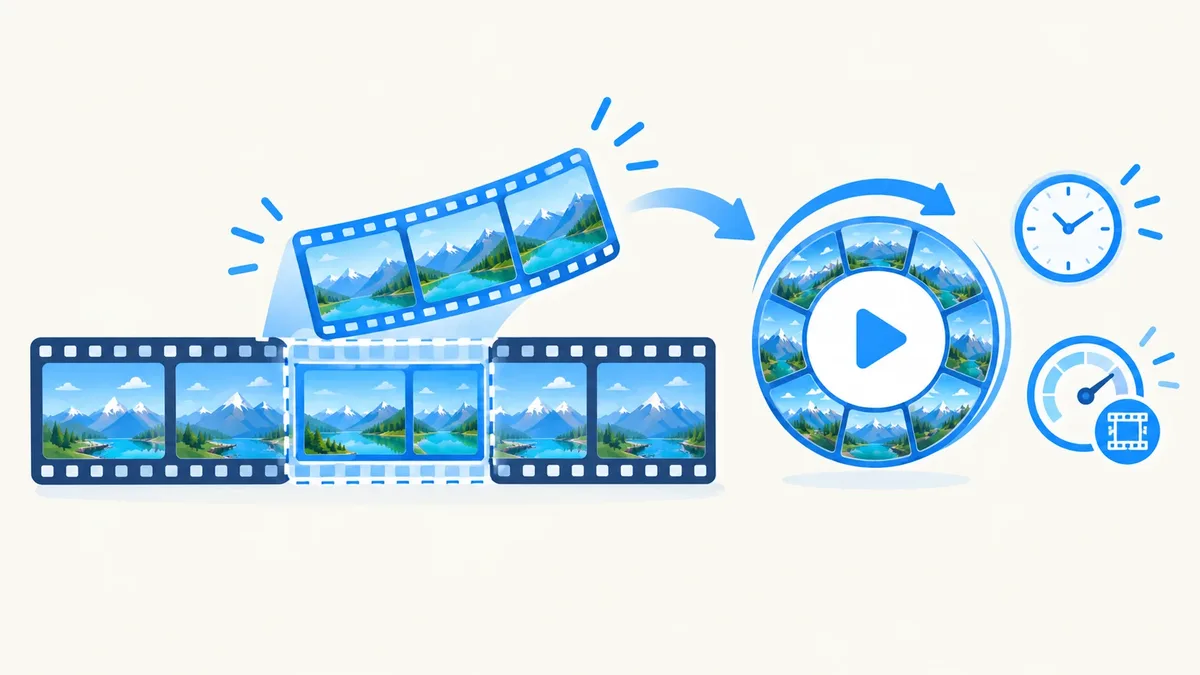
Key takeaways: To make a GIF from a video, trim it down to 2–6 seconds, keep the width around 320–640px, and use 10–15 fps — that combination gives you a smooth, shareable GIF without a huge file size. You can do all of this with a free video to GIF converter that runs in your browser, no watermark, no upload, no sign-up. Below is the exact process, plus how to fix a GIF that's choppy, grainy, or too large.
What makes a good GIF
A GIF isn't a video file — it's a sequence of individual image frames played on a loop, and every frame adds to the file size. That's why a 30-second clip converted at full quality can turn into a 200MB monster that won't upload anywhere. A good GIF is deliberately small and short by design, not by accident.
Four things decide whether your GIF looks good and loads fast:
- Length: 2–6 seconds. GIFs are meant to loop. A short, punchy clip reads better than a long one, and it keeps the file size sane. If your source clip is longer, trim it down to the one moment that matters.
- Width: 320–640px. GIFs are almost always viewed small — in a chat bubble, a tweet, a Slack thread, a product page. There's no reason to keep 1080p or 4K dimensions; you're just adding weight nobody will see.
- Frame rate: 10–15 fps. Video is usually shot at 24–30 fps, but GIFs don't need that many frames to look smooth. Dropping to 10–15 fps cuts the file size significantly with almost no visible difference for typical screen recordings, reactions, or product demos.
- Colors: 256 max. This one isn't optional — it's a hard limit of the GIF format itself. Every GIF is limited to a 256-color palette per frame, which is why gradients and photos can look slightly banded or grainy compared to the source video. Simpler footage (screen recordings, flat-color animations, text) holds up better than busy, colorful video.
Get those four right and you'll end up with a GIF that's a few hundred KB to a couple of MB instead of tens of megabytes.
Step-by-step: convert video to GIF
Here's how to do it with our video to GIF converter, which processes the file locally in your browser — your video never leaves your device.
- Upload your video. Open /video-tools/video-to-gif/ and drop in your MP4, MOV, or WebM file.
- Set the start time and duration. Scrub to the moment you want and set a duration of 2–6 seconds. Shorter is almost always better for a GIF.
- Choose your width. Pick something in the 320–640px range depending on where the GIF will live — 320–400px for chat and comments, 480–640px for a blog post or product page.
- Set the frame rate. 10–15 fps is the sweet spot. Go higher (20+ fps) only for fast motion where smoothness really matters, and expect a bigger file in return.
- Convert and download. The tool generates the GIF in your browser and hands you a file with no watermark and no size cap tied to a subscription tier.
That's the whole process — no software to install, no account, no export queue.
Why GIFs get huge (and how to keep them small)
GIFs don't use modern video compression. Instead of predicting motion between frames the way MP4 (H.264) or WebM (VP9) do, a GIF mostly stores each frame as its own set of pixels. That's the core tradeoff: GIFs are compatible with almost anything and autoplay everywhere with no video player, but they compress far worse than actual video formats.
If your GIF came out too big, work through these in order:
- Shorten the clip. Every extra second adds a full set of frames. Cutting a 10-second GIF to 5 seconds roughly halves the size.
- Lower the frame rate. Dropping from 24 fps to 12 fps cuts the number of stored frames in half with minimal visible impact for most content.
- Reduce the width. Fewer pixels per frame means a smaller file — go back to your video to GIF tool and re-export at 320–480px instead of 720px+.
- Simplify the source footage. Busy backgrounds, noise, and camera shake all make GIF compression less efficient because there's more pixel-level change between frames. A steadier, simpler clip compresses better.
- Compress the source video first. If you're working from a large source file, running it through a video compressor before converting can make the whole workflow faster, since a smaller starting file means quicker processing.
- Resize any still images you're pairing with it. If your GIF sits next to thumbnails or screenshots on a page, run those through an image resizer too — a heavy page slows everything down, GIF included.
GIF vs MP4/WebM: which should you actually use?
This is worth stopping on, because a lot of the time the "GIF" you're making doesn't need to be a GIF at all. Many platforms — Twitter/X, Discord, iMessage, and others — silently convert uploaded GIFs into short MP4 or WebM videos on their end anyway, because video compresses so much better. You get the GIF-like autoplay-and-loop behavior with a fraction of the file size.
| GIF | MP4 / WebM | |
|---|---|---|
| Compression | Poor (mostly uncompressed frames) | Strong (modern video codecs) |
| Colors | Capped at 256 per frame | Millions of colors, no banding |
| Audio | Not supported | Supported |
| Autoplay without a player | Yes, everywhere | Only where the platform enables it |
| Typical file size for a 5s clip | Several MB | A few hundred KB |
| Universal compatibility (chat, email, old software) | Excellent | Good, but not universal |
The short version: use a GIF when you need guaranteed autoplay-on-loop in places that don't support video embeds (some emails, old forums, certain chat apps). Use MP4 or WebM everywhere else, especially on your own website, where file size and quality both matter. If you've already made a GIF and want the smaller, sharper video version, our GIF to MP4 converter handles that conversion in the other direction — same clip, a fraction of the size.
Using GIFs in email, Slack, and docs
GIFs are still the right call in a few specific places:
- Email. Most email clients render GIFs reliably but don't support embedded video at all, so a GIF is often your only option for a moving product demo or reaction inside an email body.
- Slack and Teams. Both display GIFs inline and autoplay them in the message feed, which makes short GIFs great for quick visual replies or bug reports.
- Docs and wikis. Tools like Confluence, Notion, and plain Markdown-based docs often render GIFs directly with no player controls, which is exactly what you want for a "here's what this looks like" walkthrough.
In all three cases, keep the same rules from above: short clip, modest width, 10–15 fps. A 2MB GIF drops instantly into a Slack message; a 40MB one gets flagged as too large or just sits there loading.
Troubleshooting
My GIF looks choppy. This usually means the frame rate is too low for the amount of motion in the clip. Bump it up from 10 fps to 15 or 20 fps and re-export. If it's still choppy, check that your source video itself isn't dropping frames.
My GIF looks grainy or has weird color banding. This is the 256-color limit at work, especially visible in gradients, skies, or skin tones. There's no way around the color cap itself, but you can reduce how visible it is by simplifying the footage (avoid heavy gradients where possible) or accepting it as a known GIF tradeoff — it's inherent to the format, not a bug in the converter.
My GIF file is still too large after converting. Go back through the size checklist above in order: shorten the duration first (biggest impact), then lower the fps, then reduce the width. If you need the file under a strict limit (many chat apps cap uploads around 8–25MB), you may need to combine all three adjustments rather than just one.
The GIF looks fine on my computer but broken elsewhere. Some very old software struggles with GIFs that use certain optimization techniques. If you hit this rarely, re-export at a slightly lower frame rate, which tends to produce more broadly compatible files.
Colors shifted noticeably from the original video. This is normal for high-contrast or richly colored source footage being squeezed into 256 colors. It's most noticeable in gradients and less noticeable in flatter, simpler footage like screen recordings or UI walkthroughs.
Frequently asked questions
What's the best frame rate for a GIF?
10–15 fps is the best balance of smoothness and file size for most GIFs. Fast action or precise motion can justify 20 fps, but anything above that rarely looks noticeably better while making the file meaningfully larger.
What size should a GIF be?
Keep the width between 320 and 640 pixels for most uses — 320–400px for chat and comments, up to 640px for a blog post or product page. GIFs are viewed small, so there's little benefit to exporting at video resolution.
Why is my GIF file so much bigger than the original video?
GIFs use a much less efficient compression method than modern video codecs like H.264 (MP4) or VP9 (WebM), storing most of each frame's pixels individually instead of predicting motion between frames. That's why a short GIF can end up larger than a full video of the same clip.
Can I convert a GIF back to a video?
Yes — a GIF to MP4 converter turns an existing GIF into a compact MP4 or WebM file, which is useful when you want the same loop with a much smaller file size and better color quality.
Do I need any software to make a GIF from a video?
No. A browser-based video to GIF converter handles the whole process — trimming, resizing, and frame rate control — directly in your browser, with no install, no sign-up, and no watermark on the output.
Try it now
Ready to make your GIF? Head to the video to GIF converter and turn your clip into a shareable GIF in seconds — free, private, and watermark-free. Need to go the other way, shrink a source video first, or resize an image to match? Check out GIF to MP4, compress video, and resize image.